Choosing the right trading platform can make a significant difference when trading a funded futures account. While the prop firm provides the account and sets the trading rules, the platform determines how traders access charts, analyze markets, place orders and manage positions.
MyFundedFutures supports several popular futures trading platforms, including NinjaTrader, Tradovate, Quantower, Volumetrica, ATAS, DeepChart/DeepDOM and Hyperprop. Each platform offers different features, costs and setup requirements, making some better suited to beginners and others to advanced or order-flow traders.
This guide compares the platforms available through MyFundedFutures, covering their key features, data-feed arrangements, potential costs and setup processes to help traders choose an option that fits their trading style.
| Platform | Best For | Data Feed | Ease of Setup | Platform Cost |
|---|---|---|---|---|
| NinjaTrader | Advanced charting, DOM execution, order-flow analysis and automated trading strategies. | MFFU-connected NinjaTrader account; live market data requires the applicable agreement and entitlements. | Easy | Included with MFFU; exchange-data charges may apply. |
| Tradovate | Browser-based futures trading, straightforward order execution, DOM and order management; access to TradingView's charting and trading interface | Live futures market data; requires signing the MFFU live market-data agreement.
| Easy | Included with MFFU; exchange-data charges may apply. |
| Quantower | Advanced charting, order-flow analysis, footprint charts and DOM trading. | MFFU connection via dxFeed; live data access depends on applicable entitlements. | Moderate | Included with MFFU; licensing and market-data costs may vary by plan and provider. |
| Volumetrica (DeepCharts, DeepDOM) | Footprint charts, volume analysis, order flow and market-depth heatmaps | dxFeed via MFFU | Moderate | Access through MFFU; confirm any applicable platform or data fees for the account. |
| ATAS | Footprint charts, order-flow analysis, liquidity heatmaps and DOM trading. | dxFeed Prop via MFFU | Moderate | Access via MFFU dashboard; ATAS registration and platform licensing requirements apply. Check for any additional fees. |
| Hyperprop | Futures prop traders who manage multiple accounts and want drawdown visibility and account-rule monitoring | CME market data for real-time trading and drawdown monitoring | Easy | Free |
NinjaTrader
NinjaTrader is a futures trading platform suited to traders who want advanced charting, detailed order management, customization and automated strategy development. MyFundedFutures has an official partnership with NinjaTrader, making it one of the supported platforms for MFFU traders.
Features
- Advanced charting: Offers customizable futures charts with more than 100 technical indicators, multiple chart styles, drawing tools and multi-timeframe analysis.
- Depth of Market (DOM): The SuperDOM interface displays market depth and supports rapid order entry and position management.
- Order flow analysis: Provides tools such as volumetric bars, volume profiles, cumulative delta and order flow VWAP to help traders assess buying and selling pressure. Some advanced features may require the Order Flow+ add-on or an eligible license.
- Automated trading strategies: Supports strategy development, backtesting and automation through Strategy Builder and NinjaScript, its C#-based programming framework.
- Advanced trade management: Automatically submits stop-loss and target orders and supports self-tightening trailing stops through its trade-management tools.
- Streaming Market Replay: Replays historical market data tick by tick, allowing traders to review past sessions and practise execution.
- Multi-device access: Offers NinjaTrader Desktop for Windows, a browser-based platform for PC and Mac, and mobile apps for iOS and Android. The desktop version supports multi-monitor setups.
- Third-party customization: Provides access to thousands of third-party indicators, strategies, trading applications and add-ons.
- Simulated trading and backtesting: Enables traders to practise trading and test strategies against historical data without risking real capital.
- Market monitoring and alerts: Supports custom alerts, market-data analysis and tools such as Time and Sales and Level II data.
- Customer support and education: Offers live support, help guides, tutorials and training resources to help traders learn the platform.
- Flexible pricing: Provides a free platform option for charting, backtesting and simulated trading. Brokerage commissions, exchange fees, market-data access and certain premium features may incur additional costs.
How to set it up
- 1.Visit NinjaTrader Account and sign in using the login credentials provided in your MFFU dashboard.
- 2.Select your preferred NinjaTrader platform and launch it.
- 3.For NinjaTrader Desktop, open Connections → Configure and select NinjaTrader → Add.
- 4.Under the configured connections, select My NinjaTrader and enter your MFFU dashboard credentials.
- 5.Follow the MFFU guide's instructions for selecting the correct connection and simulation account.
- 6.Return to the main dashboard, open Connections, and select My NinjaTrader to connect to your MFFU account.
NinjaTrader → Connections → Configure → Add connection → enter MFFU credentials → select Simulation → connect.
Important: Menu labels and connection requirements can vary by NinjaTrader version and account configuration. Follow the MFFU NinjaTrader integration guide rather than assuming every account uses an identical connection setup.
Tradovate
Tradovate, part of the NinjaTrader Group, is a browser-based futures trading platform suited to traders who want straightforward order execution, accessible charting and order management without a complicated setup. Its simple web-based interface makes it particularly suitable for beginners and traders who prefer an easy-to-use trading environment.
As a recommended platform option for MyFundedFutures traders, Tradovate is a practical first choice for those looking for a straightforward setup and an accessible trading experience.
Features
- Depth of Market (DOM): Displays price and liquidity information in the exchange’s limit order book, helping traders place orders quickly and manage positions.
- Market Replay: Allows traders to replay historical market activity to review price movements and practice trading strategies. -** Third-party integrations:** Connects with charting and trading tools such as TradingView, Bookmap, Collective2 and daytradr.
- Built-in charting tools: Offers technical indicators, customizable chart layouts, volume profiles, drawing tools and multiple chart types.
- Advanced order management: Supports bracket orders, trailing stops, hotkeys and configurable stop-loss and profit-target orders.
- Cross-device access: Available through web, desktop and mobile platforms, with charts and workspaces that can sync across devices.
- Simulated trading: Provides a simulation environment for practicing strategies and testing order execution without risking live capital.
- Performance tracking: Offers tools to review trading activity and analyze performance by account or trading symbol.
- Customer support: Provides phone support and live chart support to help users resolve platform-related queries.
- Cloud-based infrastructure: Stores order data securely in the cloud, supporting access across devices.
- Flexible pricing: Offers different pricing plans, including options without a monthly platform fee; brokerage, exchange data and MFFU-specific charges may vary.
How to Set it Up
- 1.Visit Tradovate and log in using your MFFU account credentials.
- 2.Sign the live market-data agreement when prompted.
- 3.Once signed, your account will be updated to enable live market data, allowing you to view real-time futures prices and execute trades.
Visit MFFU Help Guide for Tradovate account login and setup instructions.
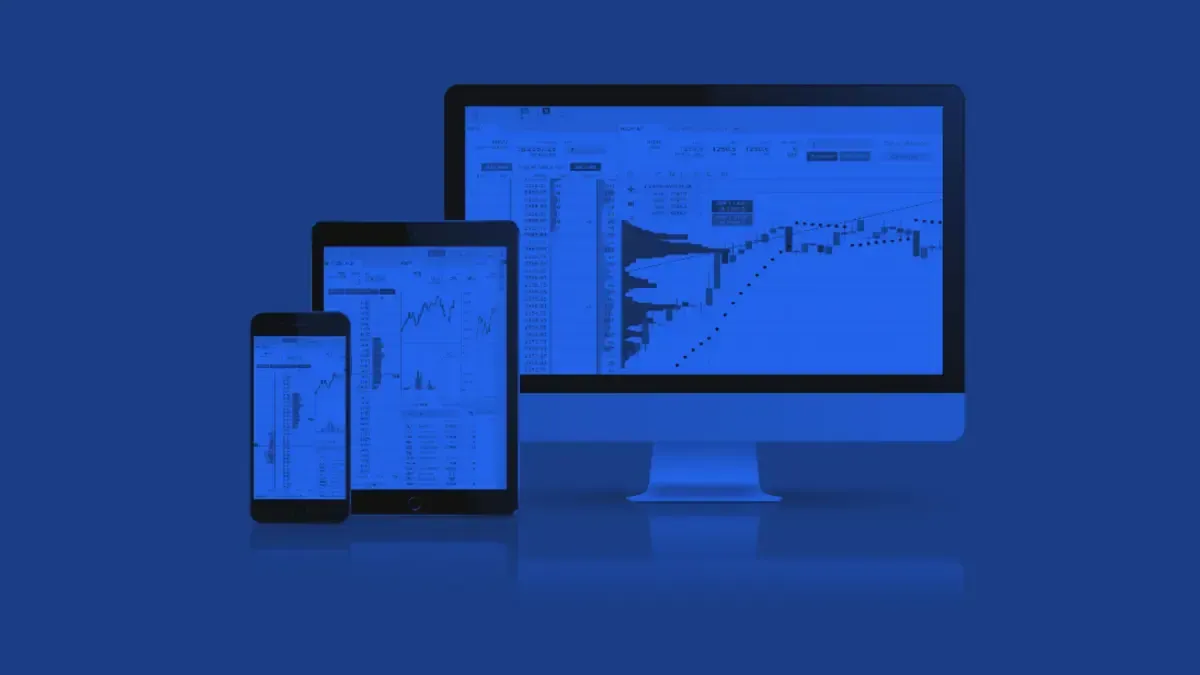
Using TradingView With Tradovate
MFFU traders can use TradingView's charting and trading interface through their Tradovate connection. This gives traders access to TradingView's extensive charting, technical-analysis and alerting tools while using Tradovate for the account connection and trade execution.
TradingView is particularly useful for traders who prefer a more advanced charting environment than Tradovate's native interface. To use it with an MFFU account, traders first enable the TradingView add-on in Tradovate and then connect their Tradovate account through TradingView's Trading Panel.
TradingView Features
- Advanced charting: Provides multiple charts, customizable layouts, technical indicators, drawing tools and multi-timeframe analysis.
- Multiple chart types: Supports candlesticks, Renko, Heikin Ashi, range and volume-based charts.
- Technical analysis: Offers hundreds of built-in indicators and strategies, along with custom indicators through Pine Script.
- Volume and pattern analysis: Includes tools such as volume profiles, footprint charts, TPO and session volume profiles.
- Historical market replay: Bar Replay allows traders to review historical price action and test analytical setups. -Alerts and monitoring: Supports price, drawing-tool and Pine Script alerts across browser, email and mobile notifications.
- Custom indicators and strategies: Pine Script allows traders to build and customize indicators and strategies.
- Trading and order execution: Traders can place and manage trades through TradingView when connected to a supported Tradovate account.
How to Connect TradingView to Tradovate
- 1.Log into your Tradovate account.
- 2.Go to Application Settings → Add-Ons.
- 3.Activate the TradingView add-on.
- 4.Open TradingView and select Trading Panel.
- 5.Select Tradovate.
- 6.Sign in using the Tradovate credentials associated with your MFFU account.
- 7.Select the appropriate account and begin trading through the connected TradingView interface.
Visit the MFFU Help Guide for TradingView integration instructions.
Quantower
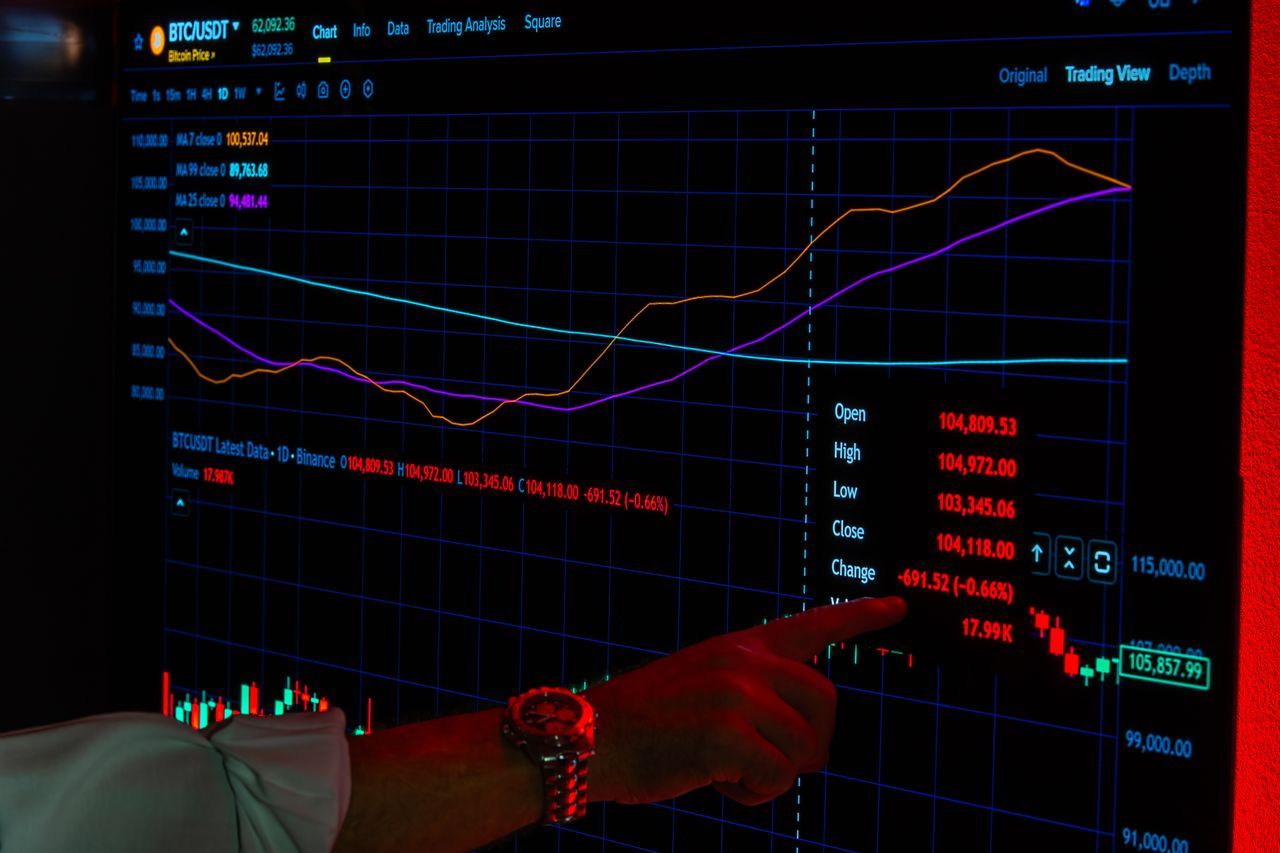
Quantower is a multi-asset and multi-connect trading platform for traders wanting advanced market analysis and a customizable interface.
Features
- Customizable interface: Arrange panels across multiple monitors, group and link them to synchronize symbols, and save workspace layouts and templates.
- Advanced charting: Offers multiple chart types, technical indicators, drawing tools, custom timeframes and chart overlays for comparing instruments.
- Depth of Market (DOM): Displays the order book and supports order placement and management directly from the price ladder.
- Order-flow and volume analysis: Includes footprint (cluster) charts, volume profiles, VWAP, TPO charts and DOM Surface heatmaps to examine traded volume, liquidity and order-book changes.
- Market Replay: Replays historical market data so traders can review price action and manually test strategies.
- Trading Simulator: Simulates order execution and lets traders practise with a configurable balance, execution delay and commission settings.
- Order entry and management: Supports market, limit and stop orders, chart-based trading, hotkeys and tools for managing working orders and open positions.
- Copy trading: Provides a panel for copy-trading workflows where supported by the connected trading setup.
- Strategy development: Includes a Strategies Manager and API tools for developing custom indicators and automated trading strategies.
- Multi-connection support: Connects with supported brokers, exchanges and data providers, with simultaneous connections available for comparing markets and feeds.
How to set it up
- 1.Download Quantower from the MFFU dashboard.
- 2.Launch Quantower.
- 3.Select dxFeed.
- 4.Choose MyFundedFutures.
- 5.Enter MFFU credentials.
- 6.Connect.
Visit MFFU Help Guide for Quantower integration
Volumetrica
Volumetrica develops specialized trading and analytical platforms for futures traders who rely on volume analysis and order flow. Its tools combine market visualization, order execution and risk-management features, depending on the product and account integration.
Features
- Volume and order-flow analysis: Includes Volume Profile, Delta Profile, Time Price Opportunity (TPO) and Order Flow Analyzer tools to examine traded volume and buying or selling pressure.
- Advanced chart types: Supports DeepBars, range and Renko charts for analyzing price movements using different methods.
- Depth of Market (DOM): Displays bid and ask liquidity in the order book, helping traders assess market depth.
- Time and Sales: Tracks executed trades in real time, providing insight into transaction activity.
- Order execution: Supports order placement from charts, the DOM or trading panels.
- Risk management: Offers one-cancels-other (OCO) orders and customizable money-management tools, including daily profit-and-loss limits.
- Liquidity analysis: DeepDOM provides heatmaps of historical order-book liquidity, volume bubbles and tools for examining potential hidden liquidity and aggressive trading activity. -** Replay and simulation:** Supports historical tick-data replay and simulated trading for practice and strategy review. -** Performance reporting:** Provides trading reports covering metrics such as win rate, drawdown, risk-to-reward and results by instrument.
- Real-time data: Volumetrica identifies dxFeed as its real-time data-feed partner; access to live data depends on the platform and account arrangement.
How to set it up
- 1.Select Login to Volumetrica from the MFFU dashboard.
- 2.Enter the credentials supplied by MFFU.
- 3.Open the Web Platform.
- 4.Select the MFFU/dxFeed connection.
- 5.Confirm the green connection indicator.
- 6.Select the futures instrument.
Visit MFFU Help Guide for Volumetrica integration; for DeepChart/DeepDom integration
ATAS
ATAS is a specialized trading and market-analysis platform focused on order flow, volume analysis and liquidity visualization. It is particularly suited to futures traders who want to examine buying and selling activity beyond conventional price charts.
Features
- Advanced charting: Footprint, cluster and customizable candlestick charts.
- Volume analysis: Volume Profile, Market Profile, TPO, VWAP and delta.
- Smart DOM: View market depth and manage orders directly from the price ladder.
- Smart Tape: Identify large trades and aggressive buying or selling.
- Liquidity heatmaps: Visualize order-book liquidity and changes over time.
- Order-flow indicators: Cumulative volume delta, imbalances and large-trade analysis.
- Market Replay: Review historical market activity and practise strategies.
- Alerts and watchlists: Monitor instruments, price levels and trading signals.
- Customizable workspaces: Arrange charts and analytical panels to suit your workflow.
- Performance statistics: Track profit and loss, win rate and drawdown.
- Broker and data connections: Connect to supported brokers and data providers, subject to availability.
- Custom development: Build indicators and automated strategies using API tools.
How to set it up
- 1.Download ATAS from the MFFU dashboard.
- 2.Register with ATAS.
- 3.Install the platform.
- 4.Log in
- 5.Select Connections → Add.
- 6.Choose dxFeed prop.
- 7.Enter MFFU credentials.
- 8.Connect
Visit MFFU Help Guide for ATAS integration.
Hyperprop
Hyperprop is a trading platform designed specifically for futures prop-firm traders, bringing multiple accounts, order execution and risk monitoring into a single workspace. Integrated with MyFundedFutures, it emphasizes clear visibility into evaluation progress, trailing drawdown and account limits while trading.
Features
- Unified account dashboard: Manage multiple prop-firm accounts from one workspace.
- Real-time drawdown tracking: Monitor remaining drawdown using live licensed CME market data.
- Evaluation monitoring: View account status, profit targets, limits and evaluation progress while trading.
- Order management: Uses a separated Buy/Sell interface, adjustable order size and linked stop-loss and profit-target brackets.
- Copy trading: Copy trades from a lead account to linked follower accounts, with individual risk limits maintained.
- Trade journal: Automatically records actual trade executions for performance review.
- Verified track records: Share verifiable trading records based on real trade data rather than screenshots.
- Browser-based access: Trade and monitor accounts through a streamlined web interface.
How to set it up
- 1.Click the Platforms button from your MFFU dashboard
- 2.Select Hyperprop and login using MFFU credentials
- 3.Confirm that live CME market data is available before trading.
Visit MFFU Help Guide for Hyperprop.
How to Choose the Right Platform
- For advanced execution: NinjaTrader offers extensive order-management tools, automation and customization.
- For beginners: Tradovate is a good starting point for traders who want straightforward futures order execution, while TradingView is better suited to those who want an intuitive charting interface and accessible technical-analysis tools.
- For advanced market analysis: Quantower combines customizable charts with a broad range of analytical panels.
- For order-flow traders: Volumetrica and ATAS specialize in footprint charts, volume analysis and order-flow tools.
- For market-depth analysis: DeepChart/DeepDOM focuses on order-book liquidity and visual market-depth analysis.
- For an integrated MFFU experience: Hyperprop aims to bring trading, account monitoring and drawdown visibility into one workspace.
Platform Cost vs. Funded Account Cost
When choosing a trading platform for an MFFU account, distinguish platform and market-data fees from the cost of obtaining funding. The funded-account cost typically covers the evaluation fee, while platform expenses may include subscriptions, licenses or exchange data charges. Some platforms are available through MFFU without a separate platform fee, but third-party subscriptions or data costs may still apply. Check the specific plan’s terms to understand the total cost before getting started.
Conclusion
The best trading platform for a funded futures account depends on your experience, trading style and budget. Tradovate is a practical option for straightforward execution, while TradingView can be connected through Tradovate for traders who prioritize charting and technical analysis. NinjaTrader and Quantower offer more advanced analytical and execution tools. ATAS and Volumetrica cater to order-flow specialists, and Hyperprop emphasizes integrated account and drawdown monitoring. Compare platform capabilities, account compatibility, data access and total costs before choosing the setup that best supports your trading strategy.
¹This material is provided for educational purposes only and should not be relied upon as trading, investment, tax, or legal advice. All participation in MyFundedFutures (MFFU) programs is conducted in a simulated environment only; no actual futures trading takes place. Performance in simulated accounts is not indicative of future results, and there is no guarantee of profits or success. Fewer than 1% of participants progress to a live-capital stage with an affiliated proprietary trading firm. Participation is at all times subject to the Simulated Trader Agreement and program rules.
Frequently Asked Questions
Related Posts
Read our most popular posts

Announcing: MyFundedPerps
MyFunded announces MyFundedPerps, a new prop-trading platform expanding into perpetual futures and digital assets. Built on the foundation of MyFundedFutures with enhanced technology, it offers traders access to multiple markets and asset classes.
Benefits of Short Selling in Futures Versus Stocks
Short selling stocks comes with borrow fees, locate requirements, the uptick rule, and the pattern day trader rule. Futures have none of those barriers; a short entry works exactly like a long entry, because the market was built that way. This guide covers the mechanics on both sides, where futures shorts hold a real edge, and what to know before shorting inside a funded account.
What Is Hedging in Futures Trading? Do Prop Firms Allow It?
Hedging offsets risk on one position by holding another that gains when the first loses. It’s one of the oldest tools in futures; and one of the most misunderstood rules in prop trading. Policies differ sharply between firms, and getting it wrong can end an account. This guide explains how hedging works, the forms it takes, and exactly where firms like MyFundedFutures draw the line.
